

What Is Screensharing in Listen?
When screensharing is enabled, participants are asked for permission to share their screen (or turn on video) at the start of each session. This creates a synchronized recording of their screen activity alongside the audio/video interview — so you can watch exactly where they click, hesitate, scroll, or get confused.Desktop Screen Sharing
Desktop screensharing works through the participant’s browser. When they open the study link on a desktop device, they’ll see a browser-native screen-sharing prompt.Setting Up Desktop Screensharing
- Open your study guide.
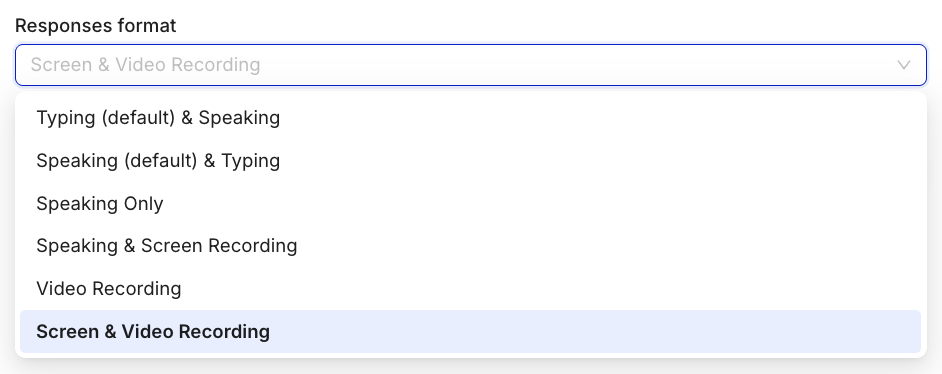
- In the Interview format section, select Screen & video recording (or Screen & audio recording).
- Under Target platforms, keep Desktop selected.
- Publish and proceed to launch.
Mobile Screen Recording (iOS and Android)
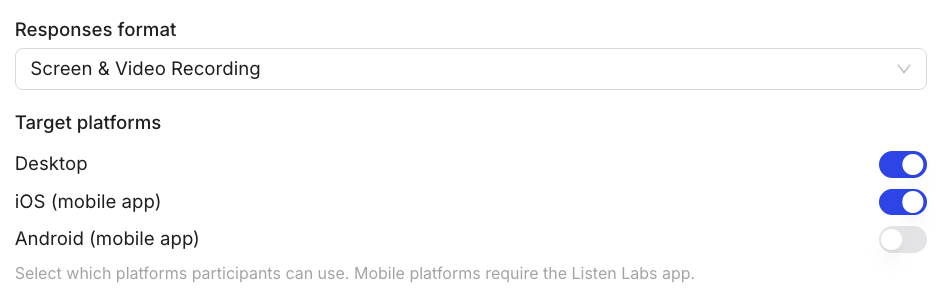
Mobile Screen Recording is Listen’s most requested feature, and it’s now live. Participants join via the Listen app for iOS or Android by opening their study link on their phone or scanning a QR code. To turn it on, select iOS, Android, or both under Target platforms in the Interview format section. Phone browsers cannot record the screen, so mobile participants must use the app.What You Can Capture on Mobile
- Full native app interactions, including app-switching and multitasking
- Real user journeys across multiple apps — not just yours
- Exact moments of friction and drop-off in the mobile experience
- Screen activity synchronized with the participant’s verbal narration
How Participants Join Mobile Sessions
- The participant receives their study link.
- They open the link on their phone. This prompts them to download the Listen app from the App Store or Google Play if it is not already installed.
- They open the study inside the app, which handles screen recording permissions.
- The interview runs inside the app, with screen recording capturing all activity.
Reviewing Screensharing Data
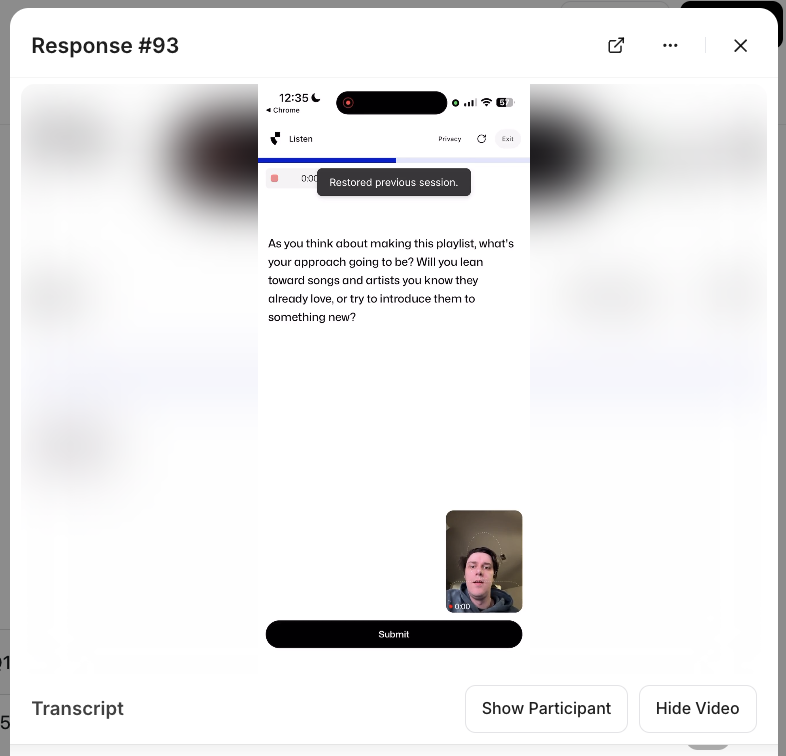
Screen recordings appear alongside the standard video/audio in each participant’s response. In the Responses tab:- Click into any response to watch the synchronized screen recording + interview.
- You can also toggle between the screenshare view and participant video.
- Screensharing clips can be included in highlight reels — contact support to enable.
- Look for hesitation, backtracking, and confusion in the recording — these often surface issues participants wouldn’t volunteer verbally.
Questions about screensharing setup? Email support@listenlabs.ai