

Formatting Text with Markdown
Markdown lets you add simple formatting—like bold, italics, and links. This is especially helpful for emphasizing instructions, highlighting keywords, or linking to external resources (like product pages or privacy policies).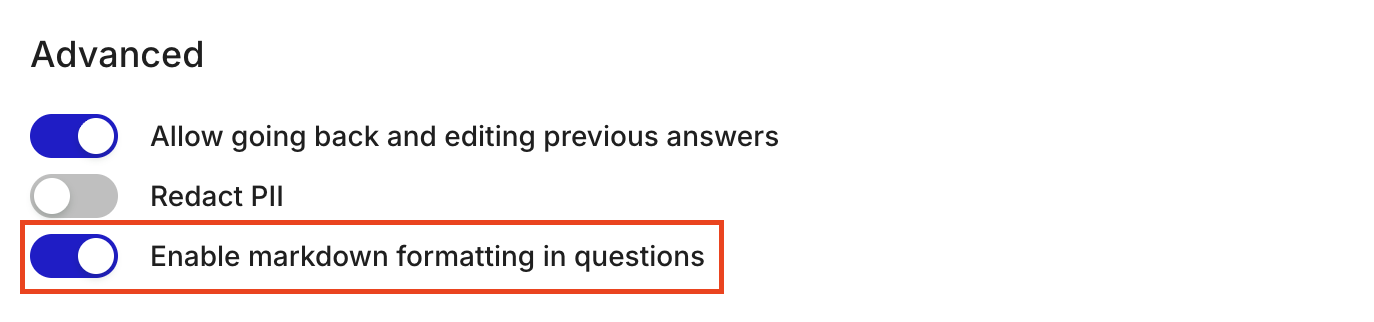
- In your study guide, click the Study settings button (gear icon) and choose Advanced settings.
- Turn on Enable markdown.
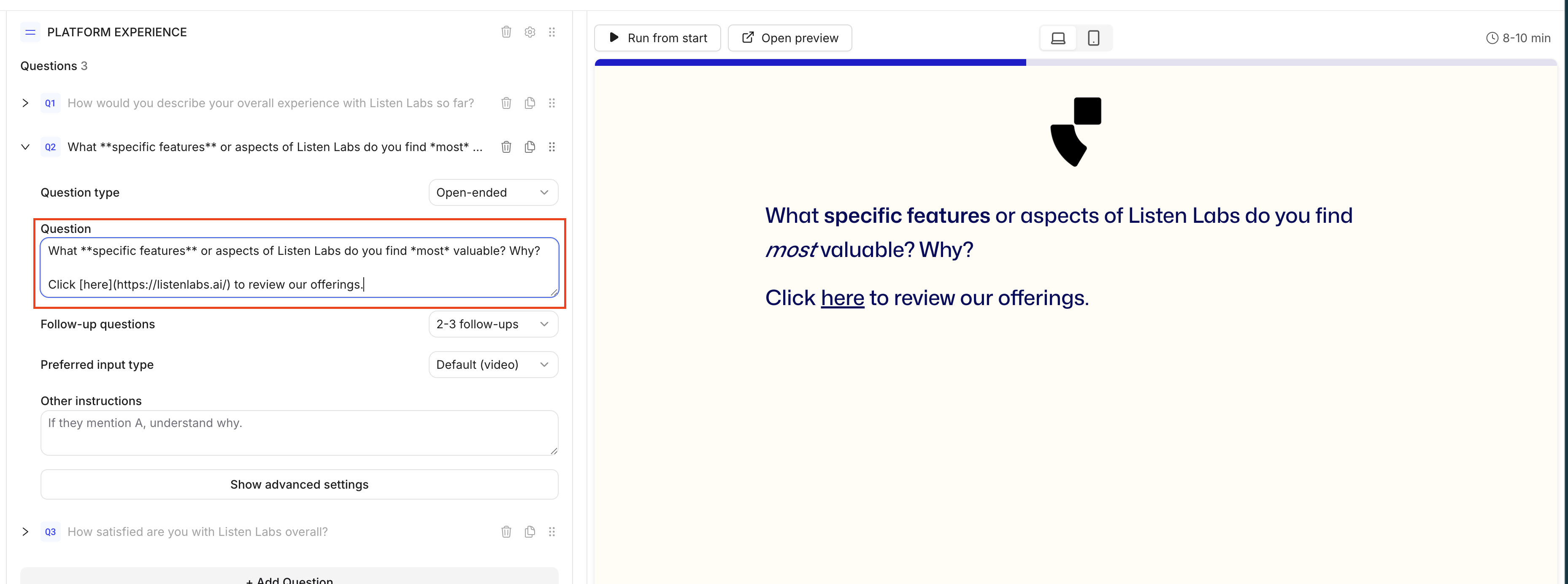
- Then use the below structure to add formatting directly in your question text fields:
- Bold text →
**bold text** - Italic text →
*italic text* - Hyperlinks →
[clickable text here](<https://yourlinkhere.com/>) Strikethrough text→~strikethrough text~Code blocks→code block
- Bold text →
- Upload a logo – In Study settings, choose Branding. Add your brand or product logo to appear at the top of your study.

- Change colors – Adjust the button, text, and background colors to match your brand palette.
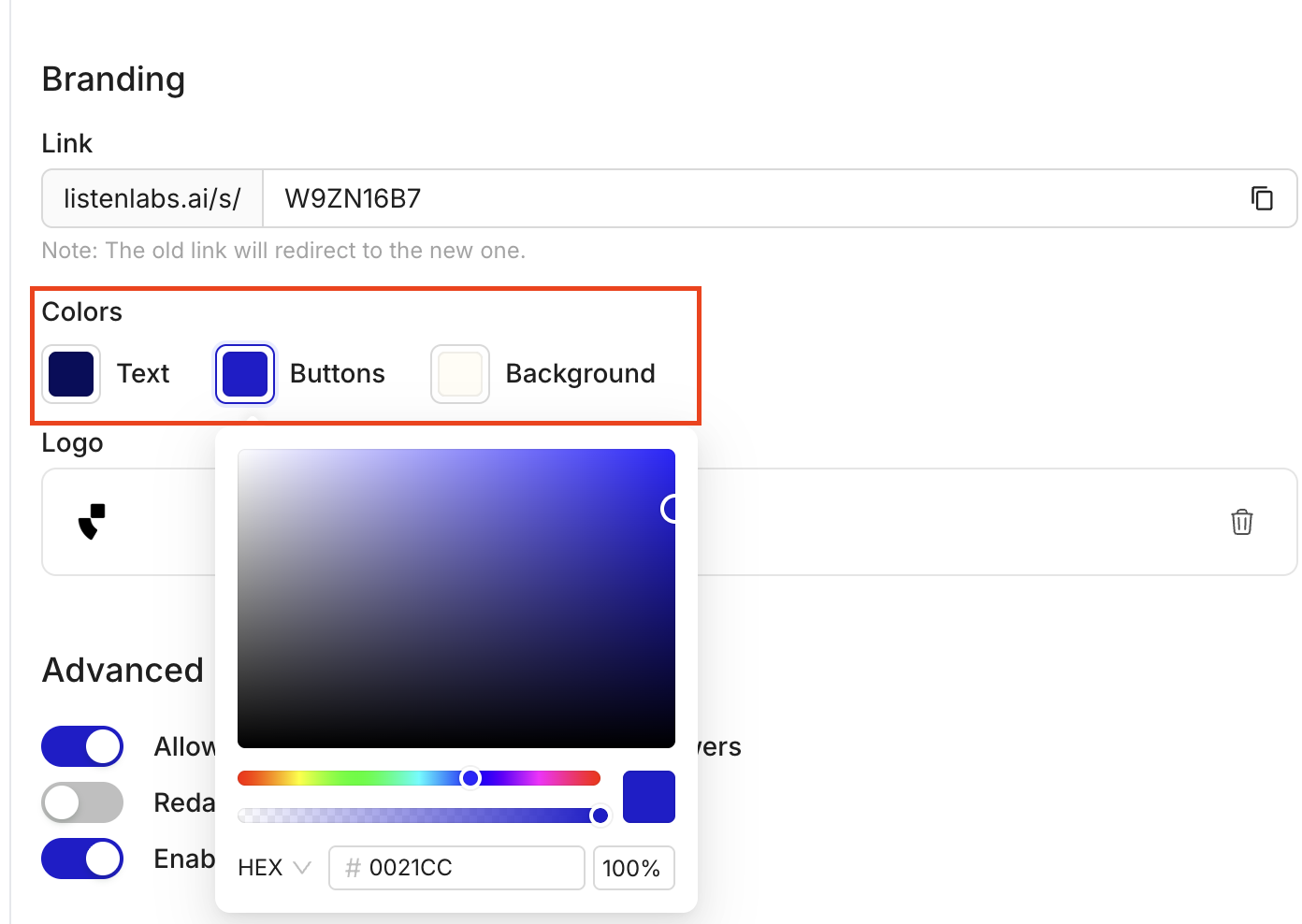
- **Customize your link **– You can change your Listen Labs study link path. Note: the old link will redirect to the new one.

💡 When to Brand vs. Not Brand
- Brand your study if you’re recruiting from your own customer base or want participants to clearly recognize your organization.
- Keep it neutral (default Listen Labs styling) if you’re using a third-party panel or testing brand perceptions where your identity might bias responses.
Anything missing? Let us know at support@listenlabs.ai and we’ll help you out!