

Seat Types & Permissions
Workspace Roles
- Admin: Full access to the workspace. Admins manage members, API keys, Slack, and email senders. Admins have full access to every study.
- Researcher: Creates, imports, and launches studies. Manages folders. Has full access to every open study. This is the default role for new invitations.
- Collaborator: Creates and edits studies. Cannot launch them. On open studies, can edit and share.
- Viewer: Read-only access to open studies. Cannot create studies. The invite dialog and the member role menu do not offer this role.
Study Access
Studies are open by default. Anyone in your workspace can find and open an open study. Your workspace role sets your access to it, as listed above.Study Roles
To share a study with one person, open the study and click Share. Choose a role:- Full access: Can edit, launch, share, and delete the study. Some share dialogs call this role Admin.
- Collaborator: Can edit and share the study, but cannot launch it.
- Viewer: Can view and comment on the study.
Inviting Team Members
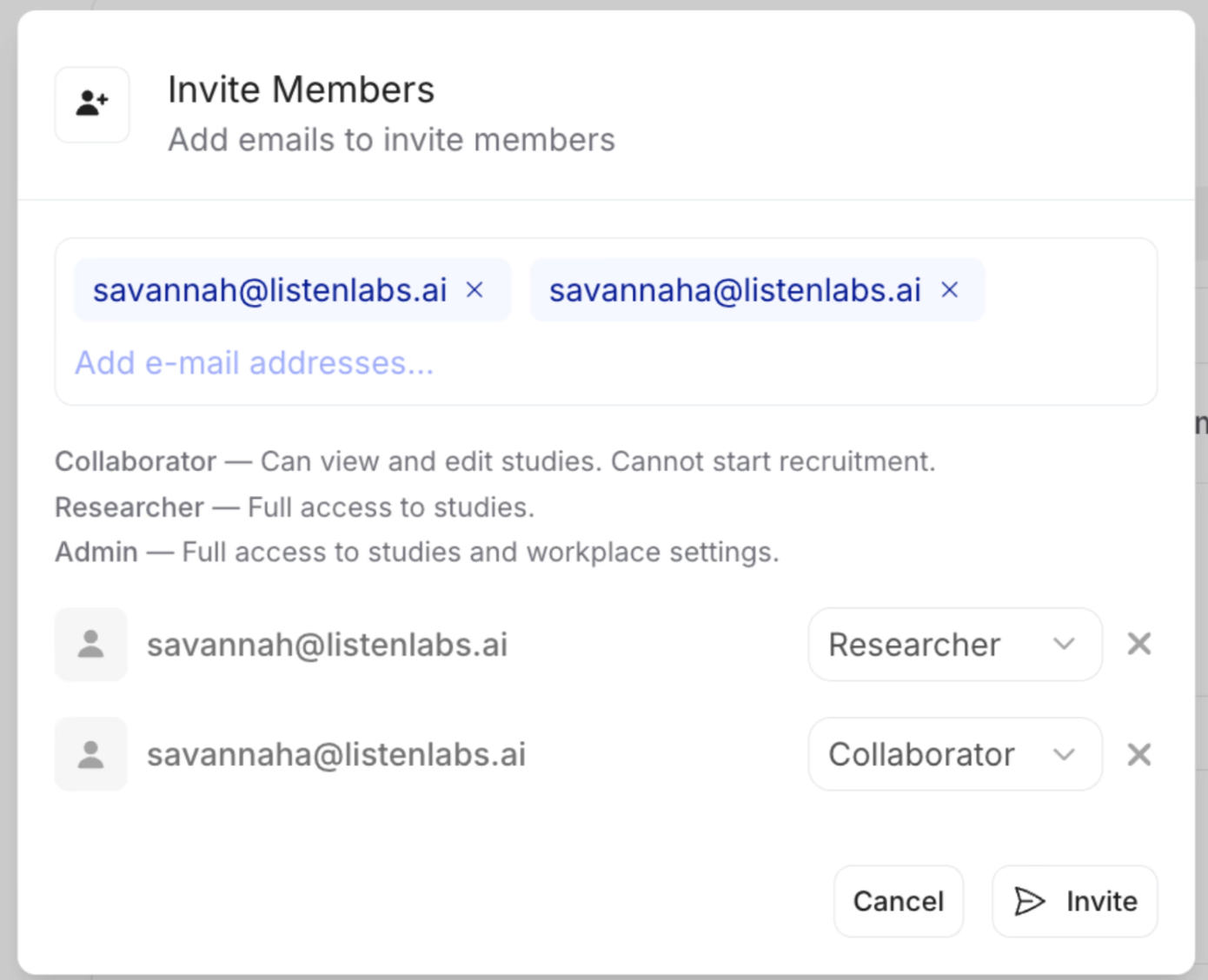
Only Admins can invite members.- From your dashboard, click Workspace in the left navigation.
- In the Team members card, click Invite members.
- Enter their email addresses.
- Assign a role: Collaborator, Researcher (the default), or Admin.
- Each invitee receives an email and joins the workspace right away.
Anything missing? Let us know at support@listenlabs.ai and we’ll help you out.